Most container aware people are probably familiar with Alpine Linux, as it is commonly used as a container base – but few are familiar with using it as a full Linux distribution. Even fewer are aware that you can easily run Alpine Linux in diskless mode, which I think is great for SBCs like a Raspberry Pi.
Diskless is essentially reading in your entire file system into
RAM and running from there, keeping your real filesystem read-only. Changes can
be made, but requires an explicit command (lbu commit), so this mode of
operation is not suitable for “normal” use like a desktop. But for a remote SBC
running one stateless workload – it’s a perfect fit!
Alpine Linux is also a refreshingly simple distribution, a nice contrast to my beloved NixOS. Everything this far has been very straight forward to understand and learn – even though I kind of miss systemd I find OpenRC and it’s shell scripts easy to love as well.
Table of Contents
Installing Alpine on a RPi
Flashing Alpine Linux to a SD-card will give you just enough OS to boot into – not create a full OS like Raspbian will do. I initially found this part a bit confusing – how do I actually install Alpine?
For diskless operation:
- Write Alpine image file to sd card, boot SBC into Alpine
- Create a partition & filesystem to store apk cache and system state
- Run through the installation process
- Reboot
The default Alpine Linux doesn’t ship with support for cloudinit or similar, so unless you are either building your own images (or preparing apkovls1) we are just doing this by hand, like cavemen!
Post-boot setup
The first time I tried this I assumed that the environment I had booted into was just a ’live cd’ like I was used to – but it is not. It is a full OS install at ~130 MiB!
But in order for any productive use we need to perform some actions and install some packages. These steps are essentially:
- Setup networking, NTP, APK repositories
- Add a data partition
- Setup LBU, APK cache and sshd
- Commit system state and reboot
Networking
These are the required steps:
setup-hostname   # localhost is not a great hostname
setup-interfaces # networking configuration
setup-ntp        # use chrony
setup-apkrepos   # select your nearest mirror

# Finally test if everything works
apk update
NTP is needed to set the system time, which is mandatory if you plan on using a
HTTPS enabled mirror. Test your setup using apk update.
Partitioning
After flashing Alpine to an SD card you will have one partition which contains a bootloader, kernel and busybox userland – a complete, bootable system. We will use this base to create and configure the rest of the system.
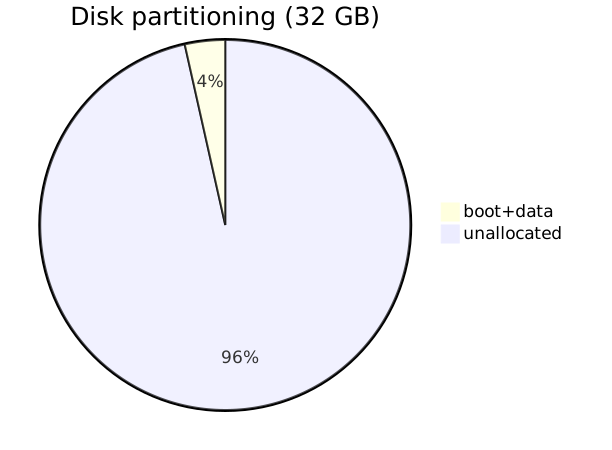
We will create a partition for the data we want to persist between reboots, and a single gigabyte or two will be more than enough, leaving the rest of the SD card untouched.
Why leave more than 90% of the card unallocated? Partly because we don’t need much storage for a stateless workload, and partially to at least enable for wear leveling if the SD card supports it. That, in combination with nearly always running the card in read-only mode, should extend the life time of the SD card.
But, in order to create a new partition and format it with a file system, we need to install some tooling:
# cfdisk for partitioning, e2fsprogs for ext2/3/4 support
apk add cfdisk e2fsprogs
Create a new partition, format it and mount it:
cfdisk /dev/mmcblk0

mkfs.ext4 /dev/mmcblk0p2
mkdir /media/mmcblk0p2
mount /dev/mmcblk0p2 /media/mmcblk0p2

# Prepare for an APK package cache
mkdir /media/mmcblk0p2/cache
Prepare for statefulness
Now we have a partition for storing stateful data – how do we keep state on a diskless system?
First we setup an APK cache, so we can reinstall packages listed in
/etc/apk/world on boot, and then we setup a local backup location
for our system which is restored on each reboot.
# It will ask you where to save the apk cache, point it at /media/mmcblk0p2
setup-apkcache

# It will ask you where to save the LBU backup, point it at /media/mmcblk0p2 as
# well
setup-lbu
The LBU only contains parts of the system, so if you need to add more files
(like custom services & packages et c) you have to add these as protected paths,
using lbu include. Files manually included in LBU backups are typically listed
under /etc/apk/protected_paths.d/lbu.list, while lbu ls will print all files
included in the archive.
Managing authorized ssh keys
First of all, setup ssh:
# This will generate host keys for sshd
setup-sshd
By default, it doesn’t seem that LBU will backup your
/root/.ssh/authorized_keys which becomes an issue after you’ve rebooted into
your new alpine installation and try to connect using ssh.
You can either add the /root/.ssh/authorized_keys file to LBU, or you can
store the same file somewhere in /etc. I chose the later, mostly due to
reasons.
mkdir /etc/ssh/authorized_keys.d
echo "AuthorizedKeysFile /etc/ssh/authorized_keys.d/%u .ssh/authorized_keys" > /etc/ssh/sshd_config.d/authorized_keys.conf
Add your public keys to /etc/ssh/authorized_keys.d/root for your root user,
substitute for other usernames (e.g. ansible) if needed.
Commit
Once we are happy with our current installation, make sure to back it up to our data volume – otherwise we will just boot into the same initial Alpine installation again.
# Check what is waiting to be saved
lbu status

# If it looks ok, commit!
lbu commit
After committing your current state (which will remount your data partition in read-write mode, then remount again as read-only after finishing the backup) you should be able to reboot into the exact same configuration again. This is exciting as we then will load the entire operating system into RAM, which is much faster than your SD card and will hopefully extend the SD cards lifetime significantly!
Now, for the most exciting step of all – time to reboot! If we got it all right, we will boot into the exact same machine again.
If you are doing this, then this tutorial obviously isn’t for you! ↩︎